Best Digital Planner for ADHD: 8 App Types Ranked by Daily Friction
Eight kinds of planner app scored on taps to add a task, visibility without opening and how hard they nag, with CAD prices and free tiers.
Every list of the best digital planner for ADHD seems to be written by someone who has never abandoned one. You have. Probably several. The app looked perfect on day one, and by week three you were back to sticky notes and a vague sense of dread.
So this ranking does not score features. It scores friction: how many taps it takes to get a thought into the system, whether you can see today without opening anything, and whether the app comes back when you ignore it. Those three things decide whether a planner survives a bad week.
The eight entries are types, not single products, because most types have two or three equally good apps and the right one depends on which phone you carry.
How we ranked: taps, visibility and nagging power
Each type was scored on the three questions that matter most on a day when motivation is low.
- Taps to add. From the moment you think of a task to the moment it is saved with a date. Two taps is excellent. Five or more means the thought will often get lost on the way.
- Visibility. Can you see today's shape on a home-screen widget or lock screen without opening the app? Out of sight is out of mind, and that is not a figure of speech for many people with ADHD.
- Nagging power. Does it allow several reminders per item, repeat them when ignored, and surface overdue tasks rather than quietly hiding them?
Lowest total friction ranks first. Price and polish came last, deliberately. For a fuller feature checklist, see our answer on what to look for when choosing ADHD tools.
Calendar-first apps (ranks 1, 4 and 5)
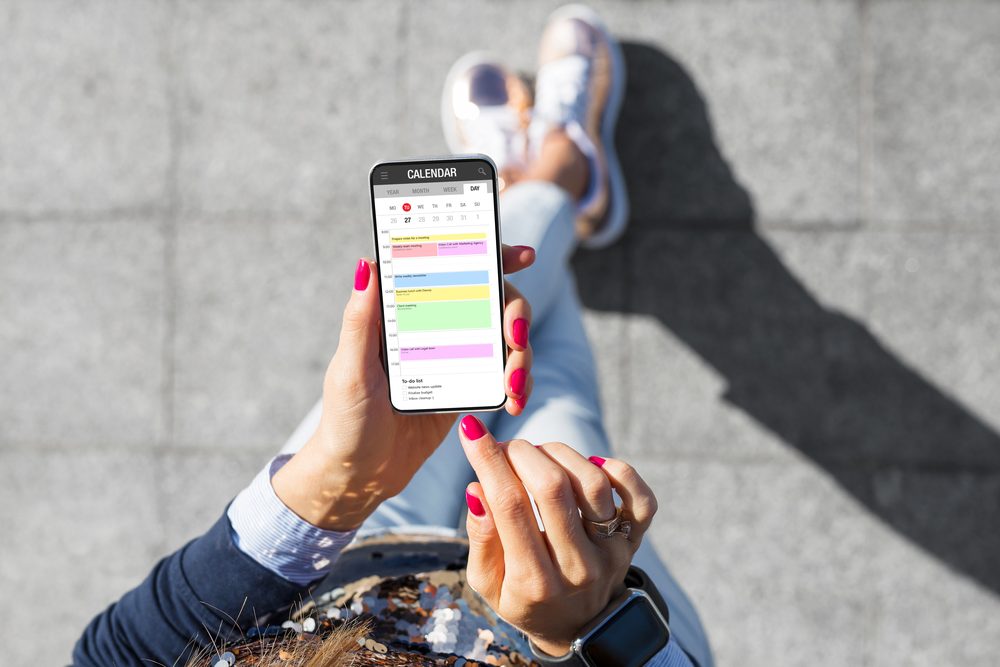
Rank 1: the phone's own calendar with its own task list. Google Calendar with Google Tasks, or Apple Calendar with Reminders. Two taps to add, widgets on every platform, multiple alerts per event, free. It wins because it is already installed and already synced to the people in your life. Its weakness is that tasks without dates drift into a long list nobody reads, so give everything a date.
Rank 4: calendar apps with natural-language entry. Fantastical on Apple devices and the Outlook mobile app on either platform let you type a sentence and get an event with a time, location and alert. Faster than tapping through menus, strong widgets, decent reminders. Fantastical's full version runs roughly 60 to 80 CAD a year; Outlook is free with most work and school accounts.
Rank 5: auto-scheduling planners. Motion, Reclaim, Sunsama and Akiflow take your task list and place each item into open calendar slots, then move things when the day slips. The daily experience is low friction. The setup is not, and the subscriptions sit around 20 to 50 CAD a month. They suit people with a stable work calendar and a lot of undated tasks.
Task-first apps with a today view (ranks 2 and 3)
Rank 2: task apps with quick add and a today screen. Todoist, TickTick and Microsoft To Do. All three understand typed dates, all three have widgets, and TickTick in particular lets one task carry several reminders and repeat an alarm until you act on it. Overdue items stay visible in red instead of vanishing. Todoist's paid tier is about 5 to 7 CAD a month; TickTick's is about 50 CAD a year; Microsoft To Do is free.
Rank 3: timeline planners. Structured and Tiimo draw the day as a vertical strip of blocks, pull in your calendar events, and count down to the next one. Visibility is the best of any type, and the nagging is built around transitions, which is exactly where many people with ADHD lose time. Adding an item takes three or four taps because every task needs a duration. Structured is cheap, around 4 CAD a month or a one-time purchase; Tiimo is about 15 CAD a month or 80 CAD a year. Our answer on digital ADHD tools for time, reminders and focus covers how these pair with a calendar.
Tablet notebook planners with a stylus (rank 6)
A PDF planner opened in GoodNotes, Notability or Samsung Notes, written on with a pen. Many people love the handwriting, the hyperlinked month tabs and the stickers, and that love is worth something, because a planner you enjoy is a planner you open. The friction numbers are poor, though. Adding a task means unlocking the tablet, opening the app, finding the page and writing. There is no widget and no reminder of any kind. If you are weighing this format, our post on digital versus physical planners is the honest comparison.
Costs are low: the PDF is usually 10 to 40 CAD once, GoodNotes is about 14 CAD a year or a one-time fee, Notability about 20 CAD a year. Rank 6 is fair for a tool that is pleasant but silent.
Spreadsheet and notes-app templates (ranks 7 and 8)
Rank 7: Notion and Obsidian templates. Beautiful on a laptop, slow on a phone. Capturing a task into a Notion database from a lock screen takes six or more taps, reminders are limited, and the temptation to redesign the template instead of using it is real. Notion is free for personal use; the paid tier is about 14 CAD a month. Keep it for project notes and reference, not for today.
Rank 8: spreadsheet planners. A Google Sheets weekly grid is free and flexible, and it has no reminders, no widget and no mobile entry worth the name. It is a fine place to plan a term in September. It is a poor place to find out what is due tomorrow.
Prices in CAD, free tiers and what to try first
Prices shift and most apps have a free tier that covers the basics, so treat these as ballpark figures and check the store page before you commit.
- Free and already installed: Google Calendar and Tasks, Apple Calendar and Reminders, Microsoft To Do, Outlook. Start here.
- Under 60 CAD a year: Todoist, TickTick, Structured, GoodNotes, Notability, a one-time PDF planner.
- 60 to 100 CAD a year: Fantastical, Tiimo.
- Over 240 CAD a year: Motion, Sunsama, Akiflow and other auto-schedulers. Only worth it if the free week genuinely changed your days.
The order to try is the order of the ranking. Spend one week on the phone's own calendar and task list with the widget on your home screen and three alerts on anything that matters. If that holds, you are done. If the day keeps feeling like a list instead of a shape, trial a timeline planner for a week. Only if both fail should money go to an auto-scheduler, and only then on a monthly plan you can cancel.
One last rule: whatever you pick, run it alone. A planner app, a paper planner and a wall calendar used together is three places to forget to look. If the reminders themselves are the weak point, our post on setting alarms for task reminders walks through a pattern that is harder to swipe away.
This article is for educational purposes only and is not medical advice, diagnosis, or treatment. Always consult a licensed healthcare professional about your individual situation. If you are in crisis or thinking about self-harm, call or text 9-8-8, Canada’s Suicide Crisis Helpline, at any time.
Finding Focus uses AI tools to help research and draft some articles. Every article is edited and fact-checked by the Finding Focus team before publication. See our editorial and medical review policy.