Calendar App Settings for ADHD: Default Alerts and Travel Time
The calendar app you already use ships with settings built for a different brain. Change the defaults once and every future event inherits the fix.
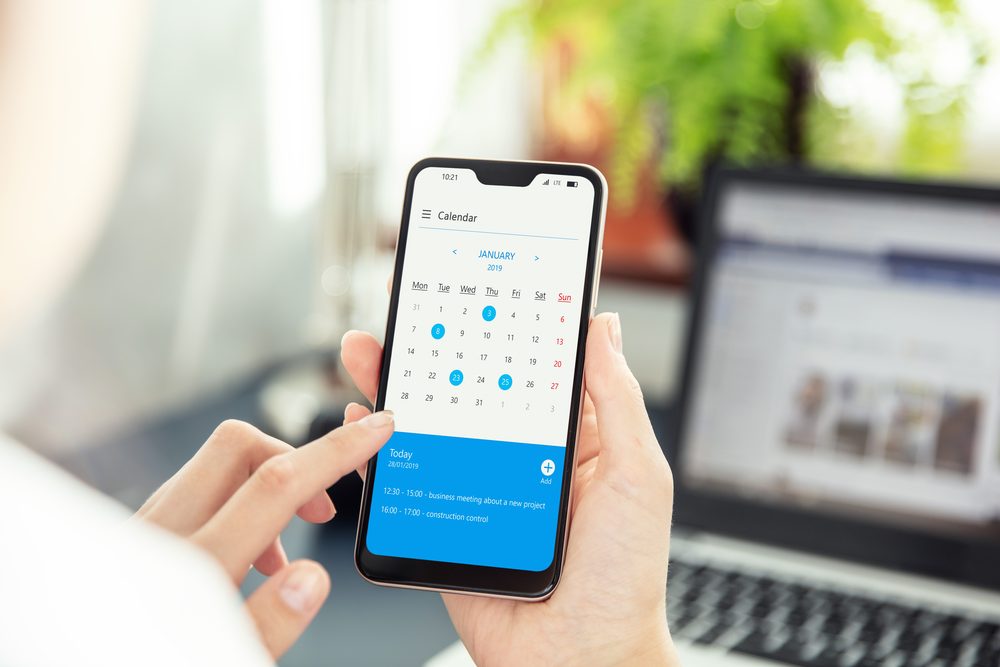
The appointment was in the calendar. The alert went off. You saw it, thought "ten minutes, fine", and then it was 2:14 and the thing started at 2:00 across town. The calendar did its job as designed. The design is the problem.
Most advice about calendar settings for ADHD is really advice about the app you should download. This is about the app you already have, whether that is Google Calendar, Apple Calendar or Outlook, and the six or seven settings that make it work with a brain that does not feel time passing. Every one of them is a default, which means you change it once and every future event inherits the fix.
Why the default ten-minute alert is built for a different brain
Google Calendar's default is a single notification ten minutes before an event. Apple's is set per device and may be nothing at all. Both assume a user who, at the alert, has already done the preparation, knows where their keys are, and needs only a nudge to stand up.
For someone with ADHD, ten minutes before is the moment the whole event becomes real for the first time. Ten minutes is not enough to finish the sentence you are writing, find the document you need, get dressed for the weather and leave. So the alert gets swiped, the brain files the event as handled, and the next contact with it is being late. This is time blindness meeting a setting that was never meant to compensate for it.
The fix is not more alerts in general. It is alerts that each ask for one specific action.
Two alerts per event: one to prepare, one to leave
Every event with a location or a video link gets two default alerts with two different jobs.
- The prepare alert, 60 minutes before for anything you leave the house for, 20 minutes before for a video call. Its meaning is fixed: stop what you are doing at a natural break, gather what the event needs, check the address. Nothing else.
- The leave alert, timed to the door, not the event. Its meaning is also fixed: shoes on, out. If you are at your desk when it fires, you are already late.
In Google Calendar, open Settings, choose your calendar under Settings for my calendars, and under Event notifications add a second notification. Both will then be applied to every new event on that calendar. On iPhone, the default alert lives in Settings, Apps, Calendar, Default Alert Times, and a second alert is added on the event itself, so it helps to keep a habit of adding it as you create the event. Outlook keeps its default reminder under Calendar settings; set it to the longer of the two and add the leave alert by hand.
Use a different sound for the leave alert if the app allows it. The ear learns the difference faster than the eye reads the text.
Travel time, buffers and the getting-ready block
A 2:00 appointment that takes 35 minutes to reach is not a 2:00 event. It is a 1:15 to 3:00 event, and the calendar should show it that way, because what the eye sees as free time is what the brain will give away.
Apple Calendar has a Travel Time field on each event and a Time to Leave alert that uses your location. Google Calendar has no travel field, so the workaround is a second event, titled "Travel: dentist", placed directly before the appointment. It takes fifteen seconds, and it blocks the slot so nothing else lands there. Treat the return trip the same way for anything over half an hour.
Two more defaults worth changing. Google's Speedy meetings option, under Event settings, ends 30-minute events at 25 and 60-minute events at 50, which builds a gap between back-to-back calls without any effort. And the default event duration, in the same menu, can be set to 45 or 60 minutes rather than 30 so that your estimates are padded by the app rather than by optimism. Many people with ADHD find that their own estimate of how long something takes is the least reliable number in the calendar.
Colour codes that answer one question only
The usual colour scheme is by life area: work blue, family green, health red, social purple. It looks organised and tells you nothing you need in the moment. The question you actually ask when you glance at a week is not "what category is that" but "do I have to be somewhere, and can it move?"
So pick one question and let colour answer only that. Two schemes that work:
- Fixed or flexible. One strong colour for events with another person and a start time you cannot shift. A pale colour for blocks you set yourself. The week then shows at a glance how much is actually locked.
- Leave the house or not. One colour for anything that involves a commute. Everything else stays the default. This is the scheme for anyone whose lateness is mostly about doors.
Google lets you colour an event directly; Apple colours by calendar, so you would create a "Fixed" calendar and move events into it. Either way, resist the urge to add a third colour. The point of the scheme is that it takes no decoding.
Shared calendars and who sees what
Sharing a calendar is the cheapest accountability there is, as long as you decide in advance what the other person can see. Google Calendar sharing has levels: see only free or busy, see all event details, make changes. Share the fixed-events calendar with a partner at the details level and keep a separate personal calendar that nobody sees. Apple's Family Sharing creates a shared family calendar automatically, and anything you add there appears on everyone's phones, which is useful for school pickups and dangerous for anything else.
Subscribe rather than retype. Most Canadian universities and colleges publish term dates and exam schedules as a calendar feed you can add once; many school boards and sports leagues do the same. Work calendars in Outlook show free or busy to colleagues by default, so a block titled "focus" is enough to protect the time without explaining it. Our answer page on digital ADHD tools for time, reminders and focus covers the apps that sit on top of the calendar; this post is about making the base layer hold.
A fifteen-minute settings pass you do once
Do this on the device you check most. Phone first if in doubt.
- Set two default notifications on your main calendar: 60 minutes and 15 minutes for Google; the longer of the two in Apple's Default Alert Times, with the habit of adding the second on each event.
- Change the default event duration to 45 or 60 minutes, and turn on Speedy meetings if you are on Google.
- Turn on Time to Leave in Apple Calendar, or decide now that every out-of-house event gets a travel event in Google.
- Choose the one question your colours answer. Recolour this week's events and no more; the rest will follow as you add them.
- Share the fixed-events calendar with the one person who most often asks where you are, at the level you are comfortable with.
- Subscribe to your term, school or league calendar feed so those dates stop depending on you.
- Set your week to start on the day your week actually starts, and make the default view the week, not the month, so Thursday is visible on Monday.
If after two weeks the alerts are firing and you are still not moving, the problem is downstream of the settings, in what happens when the alert arrives. Setting alarms for task reminders covers that handoff, and an ADHD coach can help you build a calendar system you actually use rather than one that merely looks complete.
This article is for educational purposes only and is not medical advice, diagnosis, or treatment. Always consult a licensed healthcare professional about your individual situation. If you are in crisis or thinking about self-harm, call or text 9-8-8, Canada’s Suicide Crisis Helpline, at any time.
Finding Focus uses AI tools to help research and draft some articles. Every article is edited and fact-checked by the Finding Focus team before publication. See our editorial and medical review policy.